Saturday, April 23, 2011

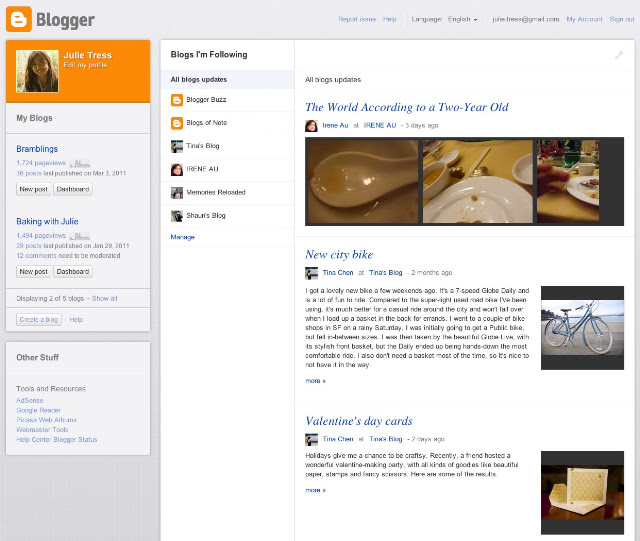
Blogger, Redesigned

Posted by Jinwoo Lee, Blogger tech lead

As we
shared before, our team has been hard at work on a brand new, next generation design for Blogger. After doing a sneak preview at the South by Southwest conference back in March, we received some great feedback from the media:


Today, we're thrilled to announce the public launch of our redesign! But please wait a second before you go check out your Blogger dashboard, because we're planning a gradual rollout that will start with a limited set of users who visit our new feature testing ground, Blogger in Draft. At the start, only some of you (lucky draws!) can see the new design on Blogger in Draft. Over the course of the next few days and weeks we'll be ramping up to support all Draft users. There is no sign-up or activation process required from your side; just wait, and you'll notice your dashboard has changed to the new design when you log in to Blogger in Draft

Although our team has been hard at work cranking out tons of new features over the last year or so, it's been a while since our user interface has had a major update so we're very excited about Blogger's fresh new look. However, there's much more to the redesign than shiny new graphics and pages—we've essentially rewritten the entire application from scratch, using the latest web technologies that will enable us to make future updates in more agile and flexible ways.

We decided to make the new UI available to our loyal Blogger users as quickly as possible. We realize there might be some 'rough edges' (see this page for the known issues)
but fear not, we'll be continually updating and improving the experience until it's ready to graduate from Blogger in Draft. Our team is also very eager to hear your feedback, so please don't hesitate to let us know of any bugs or suggestions by clicking on the "Send feedback" link in the navigation bar (or directly on this form).

This is only the beginning of many exciting updates that we're planning for Blogger this year, so stay tuned!

Saturday, April 16, 2011

Make credit box for each author in a multi-author blog

You have a blog with many authors who contribute content ,and you want to show their short bio in credit box at the end of each post . This idea was in Wordpress for a long time ,but not in Blogger . I tried several times ,but none of them work . Thanks to comment of ابن الملكـة

He gave me a code that work in a comment ,and now I want to share this code here .Both of me and ابن الملكـة hope this code helpful to you all ,and make Blogger to be the best of blogging platform .


 Here is what we need to do :

1,First ,you find this line <data:post.body/>
and then paste the following code right after the line above.
<div style='clear:both'/>        
                                    
                                      <div id='creditbox'>
                                          <!-- Author Bio info start-->
                                          <b:if cond='data:blog.pageType == "item"'>
                                       
  <!-- First Author Info -->
                                             <b:if cond='data:post.author == "NAME OF FIRST AUTHOR"'>
                                                 <img class='authoravatar' height='39' src='IMAGE URL FOR FIRST AUTHOR' width='39'/>
                                                 <div class='postauthor'>                                                     
                                                     <h3><a href='FIRST AUTHOR'S URL'>NAME OF FIRST AUTHOR </a></h3>
                                                     <p> NOTES ABOUT FIRST AUTHOR </p>
                                                 </div>
                                                 <div style='clear:both'/>        
                                             </b:if>

<!-- Second Author Info -->
                                             <b:if cond='data:post.author == "NAME OF SECOND AUTHOR"'>
                                                 <img class='authoravatar' height='39' src='IMAGE URL FOR SECOND AUTHOR' width='39'/>
                                                 <div class='postauthor'>                                                     
                                                     <h3><a href='SECOND AUTHOR'S URL'>NAME OF SECOND AUTHOR </a></h3>
                                                     <p> NOTES ABOUT SECOND AUTHOR </p>
                                                 </div>
                                                 <div style='clear:both'/>        
                                             </b:if>

.......................
                                         </b:if>
                                         <!-- Author Bio info End-->
                                     </div>
<div style='clear:both'/>       

Notes :
1- NAME OF FIRST AUTHOR : replace this with name of your first author . Name of author must be as exact as name showed in profile .
2- NAME OF second AUTHOR :replace this with name of your second author
3- IMAGE URL FOR FIRST AUTHOR :Replace this with the link to your first author avatar or image .
4- IMAGE URL FOR second AUTHOR :Replace this with the link to your first author avatar or image.
5- NOTES ABOUT FIRST AUTHOR : Replace this with author short bio ,profile ...
6- NOTES ABOUT second AUTHOR : Replace this with author short bio ,profile ...
7- FIRST AUTHOR'S URL :Replace this with link to author profile page or link to a social network account.
8- SECOND AUTHOR'S URL :Replace this with link to author profile page or link to a social network account.

In case of there are more than one <data:post.body/> in the search result ,you can paste this code right after all the results  .
If you have more than two authors ,you can duplicate the code of first author's information or second author's information and then change the name,link,bio...

2,Add this CSS code before <body> to decorate the credit box :
<style>
                                     #creditbox {
                                       background: none repeat scroll 0 0 #EDEDED;
                                       padding: 10px;
                                       margin-top:10px;}
                                       .authoravatar {float:left;margin-right:10px;padding:4px;background:#fff;border:1px solid #f0f0f0;}
                                       .postauthor {float:left;}
                                     </style>

This is an example .You can add more CSS tags to make the credit box display as you want .
 Here is my credit box in Simplex Celebrity template


That's all for making credit box in a multi-author blog .Thanks ابن الملكـة again for this helpful tip .

Friday, April 8, 2011

Beyond Design: 5 Tips for Making Your Blog More Reader-Friendly


This guest post was written by Alvina Lopez of
accredited online colleges

For those of you bloggers who are knowledgeable about the ins and outs of website design, you definitely have a leg up in the blogosphere, as most bloggers aren't completely aware how much a blog's layout and color scheme affects a reader's attention. At the same time, however, there are a few other considerations that design-centric bloggers might want to keep in mind, especially in terms of writing. Here are just a few:

1. The title is more important than you think.

Titles are something that some bloggers put more emphasis on than others. But we could all do with placing a particular importance on making each title something special. It is, after all the first thing our readers lay their eyes on. When thinking of titles, consider your own browsing history. When you read the news online, which articles do you tend to click on? How are their respective titles worded? Checking articles that top the most popular lists is also a good way to improve your blog titles.

2. Paragraphs and blog posts that are too long turn off lots of net readers.

Paragraphs and articles that are too short make you look lazy.
Obviously, most bloggers know that writing paragraphs that are too long can tire readers out. Remember, the Internet is a veritable breeding ground for ADHD. At the same time, however, articles or paragraphs that are super short make your material look skimpy. Find a happy medium, and remember that most Internet readers especially like list posts.

3. Justified paragraphs are pleasing to the eye.

Some may disagree with me on this one, but having justified paragraphs like they do in newspapers is an aesthetic consideration that makes things easier to read. You can do this by hitting the "justify" button on Word if you do take write your first drafts on a word processor. It gives your blog articles a cleaner appearance. Off-setting quoted material in a different-colored box works well, too.

4. The placement of good hyperlinks is absolutely instrumental in drawing and keeping a reader's attention.

Hyperlinks that link out to related material are one of the hallmarks of good blog posts and Internet writing in general. But be careful. Placing too many hyperlinks can overwhelm your readers, and placing too few makes your blog post come off as not very authoritative and lacking supporting sources. Be sure to include links to quality material (i.e. stay away from content farm type stuff).

5. Cycling between the pyramid and inverted pyramid, depending on circumstances, keeps things fun and unpredictable.

Traditional journalists hew to the inverted pyramid when it comes to structuring their articles. That is, they place all the most relevant and important information in the first paragraph, and put unnecessary details further down the article. While this is a good practice for news stories, with blog posts you can shake things up a bit. By doing a right-side up pyramid, in which you tease readers with the more important info toward the bottom, you can effectively get your audience to read with bated breath till the very end. Be careful with this style, however, because it can easily turn into an exercise in boredom. Be sure to make each paragraph interesting and suspenseful in its own right.

About Author

Alvina Lopez is a freelance writer and blog junkie, who blogs about accredited online colleges. She welcomes your comments at her email Id: alvina.lopez @gmail.com.

Saturday, April 2, 2011

Blogger offer five dynamic views for readers

Blogger has offered five dynamic views for readers . Now ,we can browse a blog with not only normal blog design ,but also in five different views .With the latest in web technology, including AJAX, HTML5 and CSS3 ,in these views we can :
-Read more posts without having to reload or click to a second page .
-Read posts in different layout (flipcard,sidebar,mosaic,snapshot and timeslide )
-Browse a page faster because images only load when we view ,not all at once .
......
When seeing my blog in these views ,I have to say "Oh,that's so cool"  .

See SimplexDesign blog in different views here


To enable different views to blog:
-Your blog is public. Your readers don't need to sign in to view your blog.
-Your blog has feeds fully enabled. In the Settings | Site feed tab, you have enabled either Full or Jump Break for your Post Feed.
-You have not disabled dynamic views. In the Setting | Formatting tab, the option for Enable Dynamic Views is set to Yes.

To see a blog in different views , simply add a  /view at the end of blog url . For example ,to see SimplexDesign blog in additional views ,you can go to this address : http://simplexdesign.blogspot.com/view

In all views, search is available in the upper right hand corner. Clicking on the ">" arrow in the very top left of the header bar will slide the header bar across and allow you to choose different views for the current blog as well as type in a new blog URL.

An important thing that these views require modern browsers such as Internet Explorer 8+, Firefox 3.5+, Chrome or Safari. Many elements of these views will not work if you have an older browser.

Please note that these views do not currently support many of the features your original blog may have, including displaying advertisements. Blogger team said that they will let user personalize these views, including providing an option to set a particular view as the default and displaying advertisements over the coming months.

Here is SimplexDesign blog in new views

Sidebar view

Flipcard view

Timeslide view

Mosaic view

Snapshot view